Demo environmentWorkspace: demoadmin.rent-radar.com
← Back to category
Daily OperationsAdmins, managers, and approval rolesinventoryValidated 73a3bb9

Manage inventory checks and approvals without losing audit context

Use inventory views and approval workflows to keep stock, exceptions, and sign-off activity visible at the property level.

Before you start

Treat inventory checks as an audit workflow, not a memory exercise.

  • A property is selected.
  • Your role can view inventory or approvals.

When to use this article

  • A property check needs confirmation or adjustment.
  • Inventory discrepancies need review before ordering or sign-off.
  • You want a cleaner audit trail than ad hoc messages provide.

Applies to

  • Inventory
  • Inventory checks
  • Approvals

Roles

  • Admin
  • Manager
  • Approver

Run the inventory workflow

  1. 1

    Open Inventory for the active property.

  2. 2

    Review current items, statuses, and pending exceptions.

  3. 3

    Record the needed change or check result.

  4. 4

    Send the item into approval when the workflow requires sign-off.

  5. 5

    Confirm the list reflects the updated state before leaving the page.


Protect the approval trail

  • Keep exceptions tied to the inventory record instead of splitting the discussion across tools.
  • Use property scope deliberately so approvals do not appear in the wrong operational context.
  • Escalate missing approval capability as a role issue, not an inventory bug.
Expected result

  • Inventory records are updated in the right property context.
  • Approvers can review exceptions without reconstructing the whole history.

Troubleshooting

  • If the wrong list appears, confirm property scope before editing items.
  • If an approval path is unavailable, check the current role and workspace policy.
  • Use comments or attachments inside the workflow when an exception will need later review.

Guided screenshots

Reference views for this workflow.

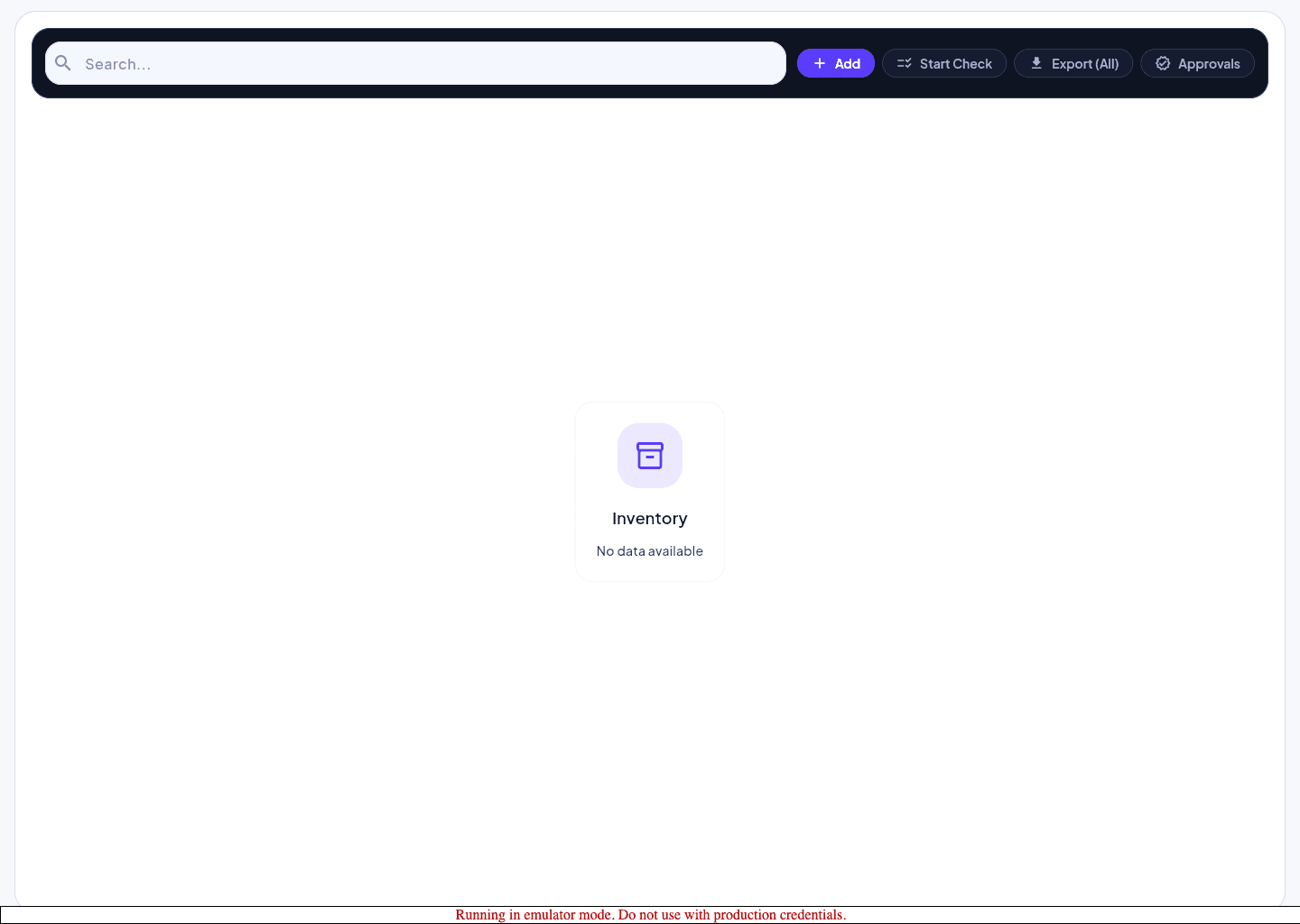
inventory list
Step 1: inventory list